
Setting up Gmail with various applications, websites, or email clients can seem straightforward, yet a lot goes on behind the scenes to ensure your messages are delivered reliably. This in-depth guide will walk you through everything you need to know about sending emails using the Gmail SMTP server, including essential settings, key benefits, and important limitations.
Quick Takeaways
- The correct Gmail SMTP server is
smtp.gmail.com. For secure connections, use port 587 with TLS (Transport Layer Security) or port 465 with SSL (Secure Sockets Layer). - Free Gmail accounts are limited to sending 500 emails per day, while Google Workspace accounts increase this limit to 2,000 emails per day.
- If two-factor authentication is enabled on your Google account, you must generate and use an App Password instead of your regular Gmail password for SMTP connections.
- SMTP is exclusively for sending email. To receive messages and keep your inbox synchronized across multiple devices, you’ll also need to configure IMAP.
What is SMTP?
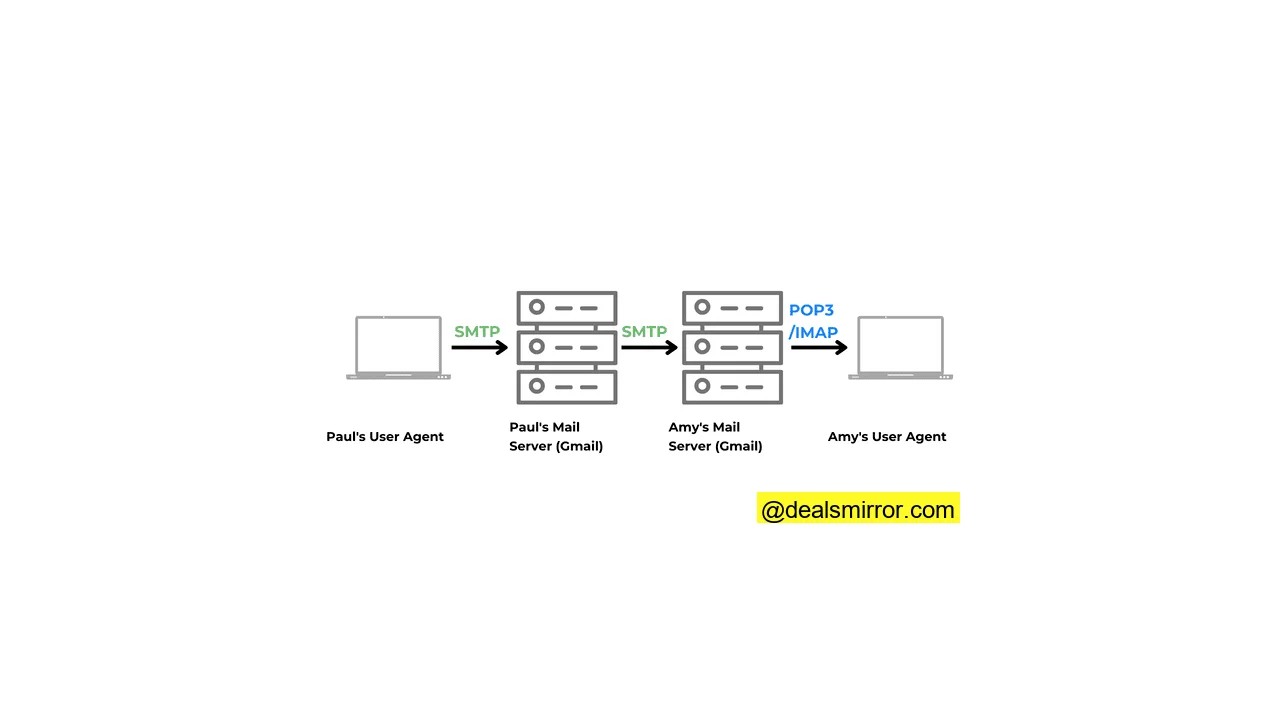
SMTP, or Simple Mail Transfer Protocol, is the foundational system responsible for sending and delivering email across the internet. When you click “Send” on an email, SMTP protocols spring into action, routing your message from your mail server to the recipient’s mail server. All major email providers, including Gmail, rely on SMTP for outgoing mail.
What is the Gmail SMTP Server?
The Gmail SMTP server is Google’s dedicated outgoing mail server that enables you to send emails from your Gmail or Google Workspace account using external email clients or software. Essentially, it acts as Gmail’s mail dispatcher, taking messages from third-party applications or websites and routing them securely through Gmail’s robust email infrastructure to the intended recipients.
Why Use Gmail’s SMTP?
Gmail is one of the most widely used and reliable free email providers, particularly suitable for lower sending volumes. Its outgoing emails benefit from Google’s strong sender reputation, ensuring higher deliverability and a lower likelihood of messages landing in spam folders. Gmail’s SMTP also offers robust security features like TLS/SSL encryption and sophisticated spam detection.
While the Gmail SMTP server is ideal for many, Google also provides the Gmail API for more advanced use cases, which requires setup through the Google Cloud Console.
You can use Gmail’s SMTP server with both free Gmail accounts and Google Workspace accounts. The setup process is largely the same, but Workspace accounts come with significantly higher sending limits. Free Gmail accounts are capped at 500 emails per day, while Google Workspace users can send up to 2,000 emails per day. If your sending needs exceed 500 emails daily, considering an upgrade to Google Workspace is recommended.
What are Gmail SMTP Settings?
The SMTP server address for Gmail is smtp.gmail.com. To enable any application or email client to send mail through your Gmail account, you’ll need to input these specific server settings:
- Gmail SMTP server address:
smtp.gmail.com - Gmail SMTP username: Your full Gmail address (e.g.,
yourname@gmail.com) - Gmail SMTP password: Your Gmail password or, if 2-Step Verification is enabled, an App Password
- Gmail SMTP port: 587 for TLS (Transport Layer Security), or 465 for SSL (Secure Sockets Layer)
- Gmail SMTP TLS/SSL required: Yes
Important: If two-factor authentication (2-Step Verification) is enabled on your Google account, you typically cannot use your regular Gmail password for SMTP in most applications, as Google will block the login attempt for security reasons. Instead, you must generate an App Password, which is a unique 16-digit passcode specifically for use with email clients and other apps. Create an App Password here. (You may need to sign in to your Google Account.) Using an App Password also helps prevent issues with SMTP connections breaking after password resets.
Google strongly recommends using authenticated SMTP connections with TLS to enhance both security and email deliverability.
While Gmail’s SMTP server is excellent for many purposes, it does have limitations designed to prevent abuse. The general limits are 100 recipients per message and 500 messages per day for free accounts. Exceeding these limits can result in your account being temporarily blocked by Google.
These limits are sufficient for most individual users. However, if your sending volume regularly exceeds 500 messages daily, consider upgrading to Google Workspace or exploring dedicated SMTP services.
How to Set Up Gmail SMTP in Your Email Client or App
Integrating Gmail’s SMTP server into an email client such as Microsoft Outlook, Apple Mail, or Thunderbird, or a web application, is generally a straightforward process. Here are the typical steps to get it up and running:
1. Enable SMTP Access (App Password)
Before you can send emails through Gmail’s SMTP server, ensure your Gmail account is correctly configured for SMTP access. If you have 2-Step Verification enabled, you absolutely must create an App Password for SMTP. If 2-Step Verification is not enabled, Google may still restrict access for “less secure apps,” making 2-Step Verification and an App Password the most reliable method.
This step usually only needs to be performed once per Google account. Attempting to use your regular password with 2-Step Verification enabled will likely result in Gmail blocking the sign-in attempt.
2. Locate SMTP Settings in Your Email Client/App
Navigate to the settings section within your email client or application where you manage or add email accounts. Look for options labeled “Outgoing mail server,” “SMTP server,” or similar. If you are setting up a new account, the initial setup wizard will typically prompt you for SMTP details after you enter your email address.
3. Enter Gmail SMTP Server Details
To configure your email client or app to send mail via Gmail’s SMTP server, enter the following information:
- Gmail SMTP server address:
smtp.gmail.com - Gmail SMTP username: Your full Gmail address (e.g.,
yourname@gmail.com) - Gmail SMTP password: Your Gmail password or the generated App Password
- Gmail SMTP port: 587 when using TLS, or 465 when using SSL
- Gmail SMTP TLS/SSL required: Yes
4. Save Settings and Test the Connection
After entering all the details, save your SMTP configuration. Most email clients offer a “Test” button or will automatically initiate a test by sending a dummy email. Send a test email to yourself or another address to confirm that everything is working correctly. The email should be sent successfully through Gmail’s SMTP server and arrive in the recipient’s inbox.
For WordPress sites, you’ll typically configure Gmail SMTP using a dedicated plugin, such as the WP Mail SMTP plugin. The underlying process of connecting to Gmail’s SMTP remains very similar.
How to Set Up IMAP in Gmail Settings
Remember that SMTP is solely for sending emails. To receive incoming emails and maintain synchronization across all your devices, you’ll also need to configure IMAP alongside SMTP.
POP (Post Office Protocol) is an older method for retrieving email that downloads messages to a single device, often deleting them from the server. Critically, it does not synchronize actions (like marking emails as read or unread) across multiple devices. Given that most people check email on their phones, laptops, and tablets, POP can lead to a confusing inbox experience, which is why IMAP is the preferred standard today.
Here are the steps to set up IMAP in Gmail:
- Open Gmail in your web browser, click on the Settings gear icon in the top right corner, and then select “See all settings.”

- Go to the “Forwarding and POP/IMAP” tab.

- Scroll down to the IMAP access section and ensure “Enable IMAP” is selected.
- Scroll to the very bottom of the page and click “Save Changes” to confirm your selection.
- Now, open your email client and enter these settings in the Incoming mail message server or IMAP section:
- Incoming Mail Server (IMAP server):
imap.gmail.com - Requires SSL: Yes
- Port: 993
- Display Name: Your Name (as you wish it to appear)
- Username: Your full Gmail address (e.g.,
yourname@gmail.com) - Password: Your Gmail password or the generated App Password
Benefits of Using Gmail’s SMTP Server
Gmail’s SMTP server is a popular choice for good reason, especially for individuals, small businesses, and freelancers. It effectively covers many essential needs without extensive setup:
- Excellent Email Deliverability: Emails sent through Gmail’s servers benefit from Google’s robust sender reputation, leading to higher inbox placement rates and fewer messages flagged as spam.
- High Reliability: Built upon Google’s world-class infrastructure, Gmail SMTP offers exceptional stability, minimizing concerns about server downtime or failed email sends.
- Strong Security Measures: SMTP connections are encrypted (TLS/SSL), and Google actively monitors accounts for suspicious activity. Combined with 2-Step Verification and App Passwords, it provides strong security with minimal effort.
- Free for Light Sending: For those sending fewer than 500 emails per day, Gmail SMTP is a completely free solution that is often more than adequate.
- Easy Integration: Most modern email clients, applications, websites, and devices already offer native support for Gmail SMTP. Simply input the server details, authenticate, and you’re ready to send.
- Cross-Device Synchronization: When paired with IMAP, Gmail seamlessly keeps all your sent emails synchronized and accessible across your phone, laptop, and desktop, making them easy to search and manage from anywhere.
These advantages make Gmail SMTP an excellent starting point, but it does have certain limitations that become more relevant as your email needs evolve.
Limitations of Gmail SMTP and What to Do Instead
While Gmail SMTP performs admirably for personal and light business correspondence, it is not designed for high-volume corporate use, email marketing campaigns, or transactional emails. Here are its primary limitations and recommended alternatives when you reach those boundaries:
- Low Daily Sending Limits: Free Gmail accounts are restricted to 500 emails per day. While fine for personal use and one-to-one communication, this limit is easily hit for any significant business activity. If you frequently encounter these limits, upgrading to Google Workspace will increase your daily sending capacity to 2,000 emails. For even higher volumes, consider dedicated SMTP services.
- Not Built for Email Marketing: Gmail SMTP lacks features essential for professional newsletters, promotional campaigns, or large-scale outreach, such as unsubscribe handling, advanced analytics, or compliance tools. Sending bulk emails through Gmail can quickly lead to account issues. For comprehensive email marketing, explore specialized email marketing platforms.
- Limited for Teams: Each SMTP connection is tied to a single Google account. Managing sending limits, App Passwords, and Google app access across a team can become cumbersome and inefficient. Google Workspace offers better tools for managing users and email settings within an organizational context.
- Risk of Temporary Sending Blocks: Google may return error messages or temporarily block sending if it detects suspicious activity, such as spammy behavior or repeated violations of sending limits. To ensure safe and consistent sending at larger volumes, investigate dedicated transactional email services designed for robust delivery.
Concluding Gmail SMTP Server
Gmail’s SMTP server is a highly reliable and user-friendly solution for sending everyday emails, particularly for individuals or small operations with lower sending volumes. Its ease of setup, coupled with Google’s trusted reputation, ensures effective one-to-one communication and good inbox deliverability.
However, it’s crucial to understand that Gmail SMTP is not engineered to handle all email requirements. As your sending needs expand, especially into areas like high-volume email marketing, customer outreach, or automated transactional emails, leveraging specialized tools becomes essential. For professional business email with enhanced daily sending limits and superior team management features, Google Workspace is the ideal upgrade. For robust transactional emails, reliable services like Mailgun or SendGrid are far better suited.