

The Simple Mail Transfer Protocol (SMTP) is the foundational standard for sending and receiving email messages across the internet. An SMTP server acts as a dedicated mail server that utilizes this protocol, ensuring your emails are delivered efficiently and reliably.
Understanding your SMTP server settings is crucial for configuring email clients, troubleshooting delivery issues, or setting up advanced email functionalities. This guide will walk you through how to locate your SMTP settings within popular email clients and provide a comprehensive list for common email providers and business solutions.
How to Find Your SMTP Settings in Popular Email Clients
Most email clients make it straightforward to find or modify your SMTP server settings. Here’s how to do it for some of the most widely used platforms:
SMTP for Apple Mail
To access your Apple Mail SMTP settings:
- Open the Mail app on your Apple device.
- Navigate to Mail > Preferences from the top menu.
- In the Preferences window, select the Accounts tab.
- Choose your specific email account from the sidebar, then click on the Server Settings tab.
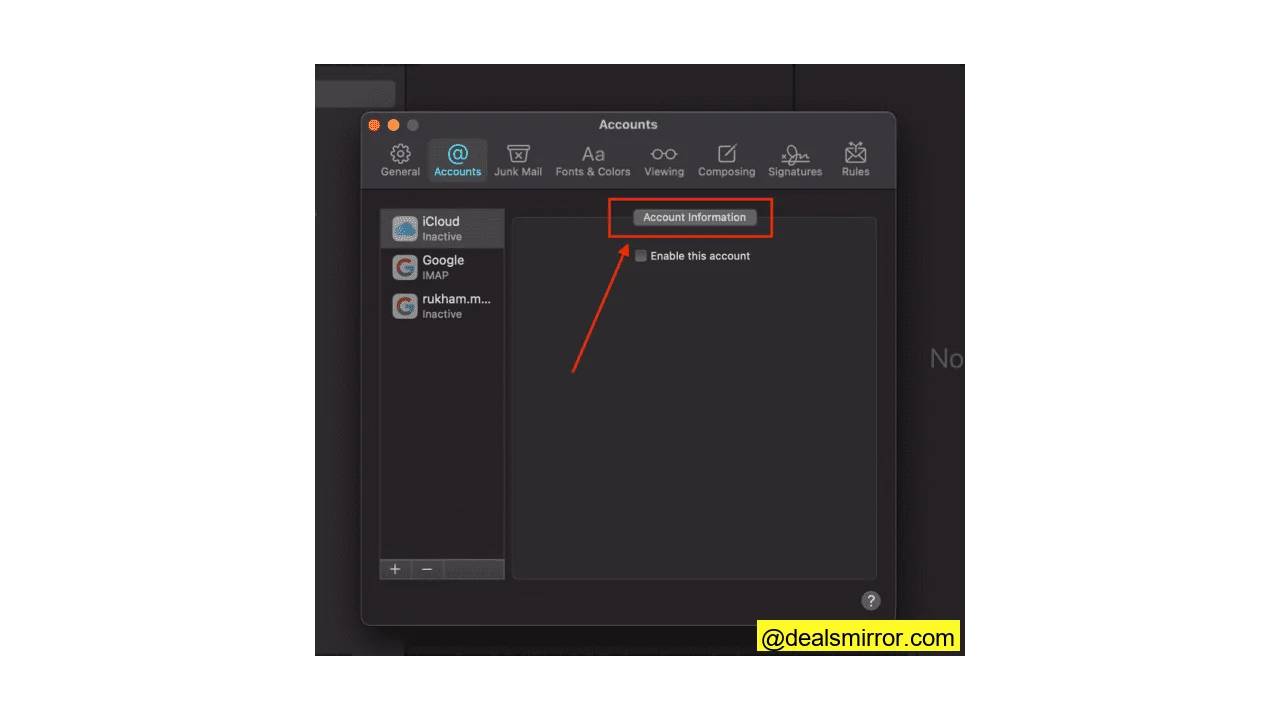
Your SMTP server details will be listed under the “Outgoing Mail Server (SMTP)” section. Apple Mail typically uses the same settings as your incoming mail server, but it’s always best to verify with your email provider if you’re unsure. You can also click “Edit SMTP Server List” to manually enter or update server details if needed.
SMTP for Outlook
For Outlook users, finding your SMTP settings is a quick process:
- Launch Outlook and go to File in the top left corner.
- Click on Account Settings > Account Settings.
- Select the email account you wish to manage and click Change.
- Within the account settings window, locate the Outgoing mail server (SMTP) field.
Ensure the “Outgoing mail server (SMTP)” field is set to smtp-mail.outlook.com and that the SMTP “Port” is configured to 587. After making any necessary adjustments, click Save and close the Account Settings window.
SMTP Server Settings for Gmail
To configure or verify Gmail‘s SMTP server settings:
- Open your Gmail account in a web browser.
- Click the gear icon (Settings) in the top right corner and select See all settings.
- Navigate to the Accounts and Import tab.
Under the “Send mail as:” section, you can click on “Add another email address” to set up an external SMTP for sending mail through Gmail. You’ll enter your full email address and password. For the “SMTP Server” field, use the address smtp.gmail.com and then click “Add Account.”
For receiving Gmail emails in another client via IMAP, use these settings:
- Incoming Mail Server (IMAP):
imap.gmail.com - Requires SSL: Yes
- Port:
993 - Display Name: Your desired name
- Gmail SMTP Username: Your Gmail account (your@email.com)
- Gmail SMTP Password: Your Gmail password
To ensure proper email reception, go back to your Gmail settings, click on the “Forwarding and POP/IMAP” tab, and verify that IMAP access is enabled.
SMTP Settings for the Most Common Email Providers
Many email providers use standard SMTP server names that are easy to find. If your provider isn’t listed here, consult their official website or support documentation for the most accurate information. Here’s a quick reference for common email service providers:
| PROVIDER | URL | SMTP SETTINGS |
|---|---|---|
| 1&1 | 1and1.com | Smtp.1and1.com |
| Airmail | Airmail.net | Mail.airmail.net |
| AOL | Aol.com | Smtp.aol.com |
| AT&T | Att.net | Outbound.att.net |
| Bluewin | Bluewin.ch | Smtpauths.bluewin.ch |
| BT Connect | Btconnect.com | Mail.btconnect.com |
| Comcast | Comcast.net | Smtp.comcast.net |
| Earthlink | Earthlink.net | Smtpauth.earthlink.net |
| Gmail | Gmail.com | Smtp.gmail.com |
| Gmx | Gmx.net | Mail.gmx.net |
| HotPop | Hotpop.com | Mail.hotpop.com |
| Libero | Libero.it | Mail.libero.it |
| Lycos | Lycos.com | Smtp.lycos.com |
| O2 | o2.com | Smtp.o2.com |
| Orange | Orange.net | Smtp.orange.net |
| Outlook.com | Outlook.com | Smtp.live.com |
| Tin | Tin.it | Mail.tin.it |
| Tiscali | Tiscali.co.uk | Smtp.tiscali.co.uk |
| Verizon | Verizon.net | Outgoing.verizon.net |
| Virgin | Virgin.net | Smtp.virgin.net |
| Wanadoo | Wanadoo.fr | Smtp.wanadoo.fr |
| Yahoo | Yahoo.com | Smtp.mail.yahoo.com |
Professional SMTP Servers for Businesses
For businesses, relying solely on free outbound SMTP servers (like those linked to personal Gmail or Outlook.com accounts) is generally not recommended for bulk or transactional email delivery. These servers are not designed for high-volume sending and may lead to lower deliverability rates or even account suspension.
Professional SMTP services offer enhanced reliability, deliverability, tracking, and support crucial for business communications. If you’re looking for a robust SMTP solution to send bulk and transactional emails, consider these industry leaders:
Conclusion: Mastering Your Email with SMTP
SMTP is the unsung hero behind every email you send and receive, facilitating seamless communication across diverse email clients and platforms. By understanding how to locate and configure your SMTP server settings, you gain greater control over your email experience and ensure your messages reach their intended recipients.
Whether you’re setting up a new email account, troubleshooting a connection issue, or scaling your business’s email operations, a solid grasp of SMTP is invaluable. We hope this guide empowers you to manage your email communications with confidence and efficiency.