
To ensure seamless email communication, configuring your mail client with the correct SMTP server settings is essential. This process is straightforward, requiring you to input specific SMTP parameters into your email software’s settings.
This guide will walk you through what SMTP means, the role of SMTP servers, and the precise settings needed for popular email services like Gmail, Outlook, and Apple Mail.
Understanding SMTP and SMTP Servers
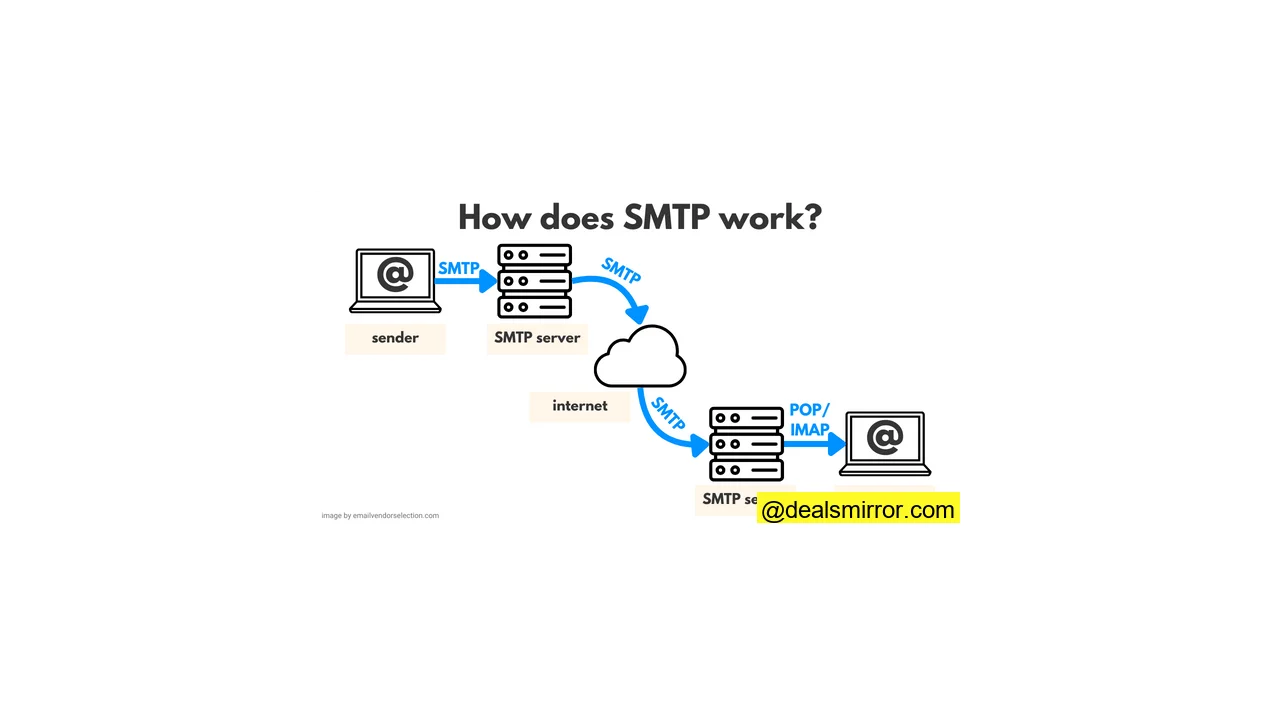
SMTP, or Simple Mail Transfer Protocol, is the backbone for sending emails across the internet. Your email client uses SMTP to communicate with your outgoing mail server, which in turn uses SMTP to converse with other mail servers. It’s a fundamental, text-based protocol renowned for its simplicity and ease of debugging.
An SMTP server is a dedicated computer running an SMTP service. While you have the option to set up your own SMTP server, many users prefer to leverage providers like Gmail or Amazon SES for convenience. Businesses frequently utilize SMTP servers for sending both marketing and transactional emails. We’ve also compiled a list of leading SMTP providers for businesses to assist your selection.
When you hit “send” on an email, your client connects to the SMTP server, which then processes and passes the message along. The SMTP server subsequently contacts the recipient’s incoming mail server to deliver the message securely.
Gmail SMTP Server Settings
To send emails using Gmail‘s robust SMTP server, configure your email client with the following essential settings:
- Outgoing Mail (SMTP) Server:
smtp.gmail.com - Use Authentication: Yes
- Port for SSL:
465or587 - Port for TLS/STARTTLS:
25or587 - Username: Your full Gmail account address (e.g.,
your.email@gmail.com) - Password: Your Gmail account password (or app password if 2FA is enabled)
Once these settings are accurately entered into your email client, you should be able to send emails seamlessly through Gmail‘s SMTP server. For a comprehensive walkthrough, explore our detailed Gmail SMTP setup guide.
Outlook SMTP Server Settings
If you wish to integrate your Outlook.com account with an external email client that supports POP or IMAP, use these manual server settings:
- IMAP server name:
outlook.office365.com - IMAP port:
993 - IMAP encryption method: TLS
- POP server name:
outlook.office365.com - POP port:
995 - POP encryption method: TLS
- SMTP server address:
smtp-mail.outlook.com - SMTP port:
587 - SMTP encryption method: STARTTLS
Apple Mail SMTP Server Settings
To configure your Apple Mail client for outgoing mail, you’ll need the following key pieces of information:
- The address of the SMTP server, which can be a hostname (e.g.,
smtp.example.com) or an IP address (e.g.,192.168.0.1). - The specific port number the SMTP server uses for outgoing connections. While the standard SMTP port is
25, some servers may use alternatives like587or465. - Whether the SMTP server requires authentication. This is common if the server restricts connections to authorized users. If authentication is necessary, you will also need a username and password for an account on that SMTP server.
Once you have gathered this information, follow these steps to configure your Apple Mail client:
- Open Apple Mail and navigate to the “Preferences” menu.
- Select the “Account settings” tab and click the
+icon to add a new account. - Enter your name and email address, then click “Continue.”
- Choose “Other Mail Account” from the list of account types and click “Continue” again.
- Input the gathered information for the SMTP server, including its address, port number, and authentication settings.
- Click “Create” when finished. Your Apple Mail client should now be configured to use the specified SMTP server for sending mail.
iCloud SMTP Settings for Apple Mail
For users utilizing iCloud Mail as their outgoing server within Apple Mail, use these specific settings:
- Server name:
smtp.mail.me.com - SSL Required: Yes
- Port:
587 - SMTP Authentication Required: Yes
- Username: Your full iCloud Mail email address
- Password: Your iCloud Mail email password (or app-specific password if 2FA is enabled)
Configure Your Own SMTP Server Using HMailServer
HMailServer is a robust, free, and open-source email server designed for Microsoft Windows environments. It stands out as a lightweight, user-friendly, and easy-to-set-up solution. HMailServer supports multiple domains, implements both SMTP and POP3 protocols, and can be seamlessly integrated with advanced spam filtering software like SpamAssassin.
For businesses and individuals seeking a dependable email server without the burden of maintaining complex email infrastructure, HMailServer is a popular choice. Its ease of setup and management makes it accessible even for users with limited technical experience. Furthermore, its free availability makes it an excellent value for anyone requiring a quality email server solution.

To set up HMailServer, follow these steps:
- Visit the HMailServer website and download the software package.
- Proceed with the installation of HMailServer on your Windows computer.
- After installation, click “Connect” and enter your chosen password for the server administration.
- Click on “Add domain” and input the domain name you wish to manage with your server.
- Under the accounts folder, click the “Add” button and provide the following details:
- Name: A descriptive name for your SMTP server.
- Hostname: The hostname or IP address of your SMTP server.
- Port: The port number your SMTP server will listen on (commonly
25,587, or465).
- Open “Settings,” navigate to “Protocols,” and uncheck both the POP3 and IMAP boxes if you intend to use HMailServer solely for outgoing SMTP.
Conclusion: Taking Control of Your Email Delivery
Proper SMTP server configuration is critical for reliable email delivery, whether you’re using a major provider like Gmail or managing your own server. For those seeking enhanced control over their email communications and to proactively avoid potential delivery issues, setting up your own email server might be a valuable consideration. For businesses, delving into the nuances of SMTP server for businesses guide can provide strategic advantages in managing high-volume or critical email workflows.