
Are you searching for captivating and free Outlook email templates to elevate your communications? Look no further! Stripo stands out as a premier drag-and-drop email builder, offering over 1600 stunning, pre-designed templates perfectly compatible with Microsoft Outlook. Its intuitive editor allows for seamless custom formatting and design, ensuring your emails always reflect your brand’s unique style.
HTML emails are significantly more effective for both marketing campaigns and professional transactions. Their visual appeal helps them cut through inbox clutter, making your messages more impactful. Whether you’re crafting a newsletter, a promotional offer, or a transactional email, we’ve curated a selection of the finest Outlook templates from Stripo. This guide will also walk you through the process of importing HTML email templates into Outlook and provide essential tips for optimizing your designs specifically for this popular email client.
Free Outlook Email Templates for Newsletters
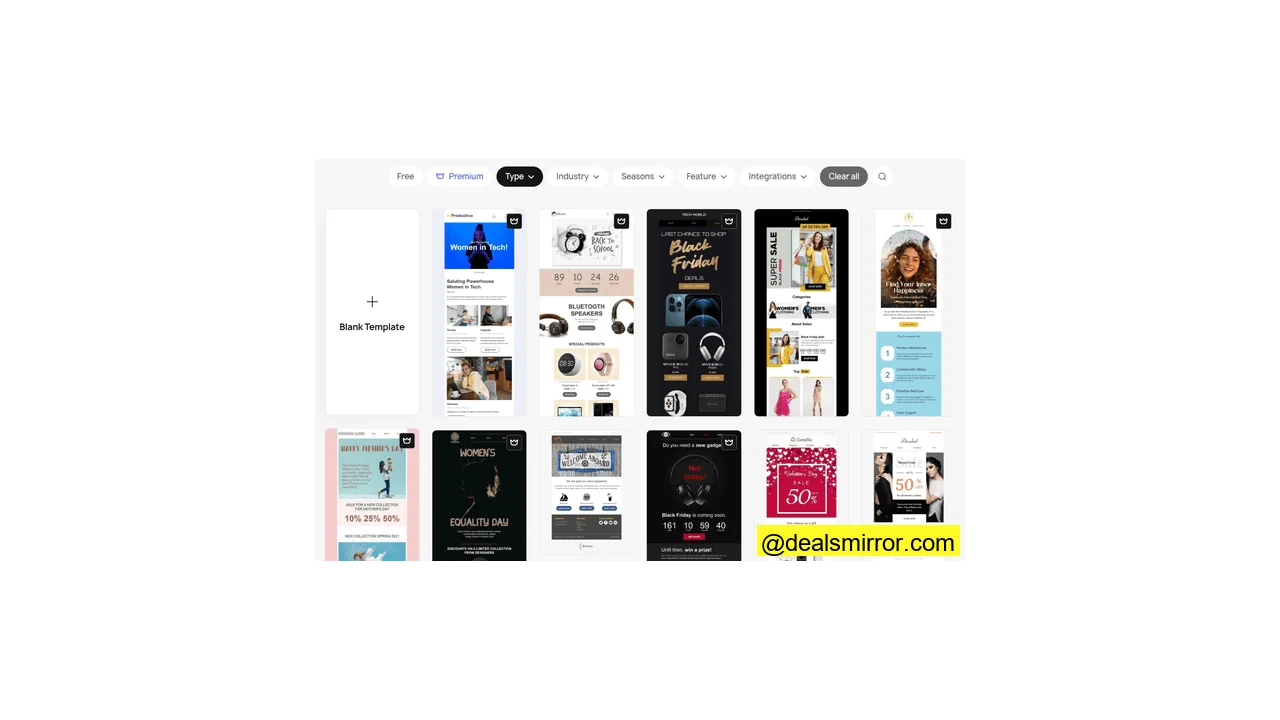
Email remains a highly personal and timely communication channel. With Outlook preferred by over 11% of email users globally, particularly within large corporations, it’s crucial that your emails are elegant, informational, and fully responsive. Stripo provides a vast array of free email templates for all use cases, including over 1600 options you can export to Outlook.
We’ve collected some of our favorite newsletter templates to help you find the perfect design:
This traditional email newsletter template excels because it aligns with common expectations for newsletter layouts. Its neutral color scheme and clear, simple layout enhance readability, making it highly customizable for nearly any purpose. This template is particularly effective for sharing multiple stories and linking to additional recent posts further down the email.
Another prevalent newsletter template style, this design effectively combines headlines, snippets, and images for multiple stories, along with clear links to the full articles. A key strength of this template is the prominent display of the author’s image and introductory text. Unlike templates that use large, space-consuming header images, especially on mobile devices, this design immediately presents the top story. This ensures subscribers can quickly grasp the email’s focus and encourages them to click through to read your content. The layout is simple and easy to scan. Additionally, a clear “Connect With Us” button at the top provides an obvious call to action, which can be easily adapted to suit any desired interaction.
Free Outlook Email Template for Real Estate
While experimentation in template design has its place, it’s vital to match the form to the purpose. For real estate, a classic, simple design often outperforms more ‘out-there’ approaches by allowing the properties themselves to be the main focus. This template exemplifies this philosophy.
It’s a straightforward design that effectively showcases multiple homes without appearing overcrowded. The template makes excellent use of white space, providing headline details and clear links to view each listing, ensuring a professional and engaging presentation.
Free Seasonal Templates for Outlook
Free Outlook Email Templates for Christmas
Creating Christmas templates requires a delicate balance: incorporate seasonal colors without making the email cluttered or hard to read. This template perfectly achieves this balance. The message, ‘Bring Joy to Those in Need This Christmas,’ is ideal for a nonprofit email campaign, with pictures illustrating different ways to donate. This clarity makes it very easy for subscribers to choose how they want to get involved.
When running Christmas promotions, make your main message instantly clear. This template effectively does just that, catering to Christmas shoppers looking for deals and convenience. Key information like “Christmas Sale” and “30% off Everything” is placed right at the top, complemented by a touch of humor (doggos!) and a prominent call to action.
Free Outlook Email Templates for Halloween
The primary challenge for Halloween emails is to utilize dark, spooky colors without appearing drab or making the content difficult to read. This template successfully tackles this by featuring an eye-catching “Happy Halloween” design at the top. Key messages about deals and discounts are presented clearly, often with a hint of urgency to encourage subscribers to take advantage of the offer.
Perfect for restaurants and bars, this Halloween template allows you to effectively showcase your holiday specials and simplify table reservations. Notice how the color scheme shifts once the menu items are introduced, utilizing bold blocks of color—including black buttons—that harmonize well with the images. While these bold elements are effective in specific sections, applying them throughout the entire template would be excessive; the contrast works perfectly.
Free Outlook Email Templates for Other Holidays
This Easter template is an excellent choice for eCommerce promotions: simple, colorful, and clear. The “Shop by Age” section, featuring distinct cards for different age groups, makes it incredibly easy for subscribers to find precisely what they are looking for.
If you’re seeking a Hannukah template, this option is highly customizable and effective. The recipe cards at the bottom can be easily adapted to feature blog posts or products, while the font and design are thoughtfully crafted to support RTL (Right-to-Left) languages like Hebrew.
It’s a common observation that the biggest sales event of the summer holidays often coincides with the end of the holidays. This classic back-to-school template exemplifies this trend. Its header is bright, eye-catching, and features a great visual design that immediately communicates the email’s purpose. The personal note, rendered in a handwritten font, perfectly complements the school aesthetic.
Free Outlook Email Templates for Thank You Emails
Thank you emails are automated messages sent after a transaction, such as a subscription signup or an order placement. These emails serve as a courtesy, fostering a connection with customers. In eCommerce, they are vital for confirming orders and building trust. The template above excels in this regard. While visually minimalist, its simplicity makes it easy to integrate your own brand images and colors, allowing your message to shine.
This template offers a different approach to thank you emails, essentially functioning as a receipt. While sending receipts via email is standard practice in eCommerce, this design demonstrates that they don’t have to be dull. An email receipt is an opportunity to reinforce your brand identity, reminding customers of a positive interaction and encouraging future purchases. Note the effective personalization in the opening line; such small touches significantly help in establishing a stronger connection with customers.
Free Outlook Email Templates for Notifications
Notification emails come in various forms, such as confirming order receipt, prompting account or password updates, or notifying loyalty program members of a reward. With notifications, clarity of purpose is paramount. This template is effective because it prioritizes the core message, avoiding distractions. Its text-led design, featuring a prominent and clear headline, makes it highly adaptable for any notification purpose.
While some imagery can be beneficial in notification emails, it’s most effective when directly related to the message. This template provides a great example: the familiar mail icon is universally understood to signify email, thus enhancing comprehension and reinforcing the message.
Subscription confirmation is a critical type of notification email, and implementing a double opt-in process (confirming every sign-up) is considered best practice. This template offers a simple yet attractive solution, comprising just five key elements: a logo, a background image, a headline, text, and a button. This minimalist approach provides everything you need and allows for easy customization of other content blocks to suit any type of subscription.
Free eCommerce Templates for Outlook
Free Outlook Email Templates for Product Recommendations
Visuals are absolutely essential in eCommerce; customers need to see what they are buying, and compelling images effectively grab attention. While some templates heavily rely on large, professionally designed graphics at the top, we’ve focused on options that are quick and easy to customize if you’re using a pre-made template.
This template exemplifies a classic product layout, resembling a product listing page on a website. When promoting products via email, it’s crucial to offer a good selection without making the email feel cluttered. Despite containing a lot of information, this template maintains cleanliness and clarity through a neutral color scheme and ample white space to separate elements. Its primary focus is on product imagery rather than extensive details.
This sales-oriented template is packed with links and calls to action (CTAs), maximizing opportunities for users to click and convert. The subtle yet effective headers separating different collections above the product images provide useful recommendations.
The clarity and spacing of this template are notable. It organizes everything into distinct blocks, creating visual appeal with images without resorting to loud colors, ensuring the focus remains on the products, not the design. You’ll observe that the headers in both these templates are largely identical: an image, a title, a brief strapline paragraph, and a link button to your online store. This is a standard and effective formula for driving traffic to your store.
Finally, this template demonstrates the powerful impact product images can have. Similar to the first example, it uses a very neutral color scheme, with the rest of the content centered on products accompanied by short descriptions. Notice how the arrangement of the pictures introduces an additional layer of visual interest.
Free Outlook Email Templates for Abandoned Cart Emails
Much like product recommendation emails, abandoned cart emails also benefit from a ‘classic’ format. The template above is a prime example: a direct capture of the actual shopping cart, accompanied by a polite note at the top inquiring if the customer wishes to continue, and a clear link to do so. This template offers excellent flexibility for any type of abandoned cart email scenario.
Simplicity is highly effective for abandoned cart emails, but you might desire a template that delivers a bit more impact. This example excels in that regard, placing strong emphasis on the product image. Visually reminding customers what they’ve left behind is a powerful way to encourage them to complete their purchase. The design is visually pleasing, with smooth layouts and an attractive color scheme. Also, observe the newsletter signup option; if the customer has reconsidered the product, they might still be interested in joining your newsletter.
How to Save Email Templates in Outlook
So, you’ve chosen and customized a free Outlook email template, adding your unique content. What’s the next step to send it within Outlook?
First, ensure you are using the Outlook app in Windows, as HTML template imports are not available in Outlook for Mac. Here are the steps to import your new template:
- Download your finished template as an HTML file.
- In Outlook, navigate to File > Options > Quick Access Toolbar.
- In the “Choose Commands From” dropdown, select “All Commands.”
- Locate “Attach File” and click “Add”.
- Click “OK” to confirm.
- Now, click Compose to create a new email.
- At the top of the email message window, you’ll see a new “Attach File” option. Click it.
- Choose your downloaded HTML file and then select “Insert as Text”.
Your template will now appear as the main body of the email. You can save it to user templates, give it a subject line, and send it as a new message! For a more detailed description, including steps to create message templates and how to import and send HTML template designs into Outlook, explore our comprehensive guide on HTML email templates in Outlook.
Things to Pay Attention to When Using Outlook Email Templates
A word of caution: Outlook has a known reputation for not always displaying HTML templates precisely as intended. Some versions are more problematic than others, primarily because Outlook’s rendering engine is optimized for Microsoft Word, not HTML or CSS. Consequently, it doesn’t interpret HTML code as effectively as other email clients.
However, there are fixes. Here are the main considerations to keep in mind:
Always Test Your Templates in Outlook Before Sending
Before finalizing your edits, send your template to an Outlook inbox for testing. Ideally, test it across different Outlook versions. If you lack access to multiple versions, utilize an email testing tool. Look for any display anomalies: check the layout, ensure custom fonts haven’t been replaced, and test all links and buttons. For any issues, try to fix or adjust them within your editor.
Stick to Simple Backgrounds
Outlook has a particular problem rendering template backgrounds, especially multiple background images. To avoid issues, refrain from using different background images in various elements. Instead, opt for a single background image or simply use your brand colors.
Button Shape Is an Issue
Do you prefer rounded link buttons in your emails, or did you choose a template for its attractive curves? By default, Outlook displays all buttons as rectangles. While this might seem minor, if your design incorporates rounded images, the hard angles of link buttons could clash, especially if there are many. The only reliable fix is to modify the button code using Vector Markup Language (VML). If you’re unfamiliar with VML, your best option is to adjust the rest of your design to complement squared buttons.
Use Spacers Instead of Margins
Margins are a CSS style command that adds space around an element, excellent for creating clean layouts with ample white space. However, Outlook does not render margins, which can lead to cramped and unappealing layouts. The good news is that spacers offer a superior alternative. Spacers are dedicated components used solely to add space, commonly employed in responsive email design and templates.
Outlook Email Templates Conclusion
Utilizing Outlook templates is an excellent way to send visually appealing emails while saving significant time and effort. Stripo remains a top choice for creating professional email templates with user-friendly drag-and-drop email builders. Remember to apply the essential tips shared for optimizing your designs specifically for Outlook.
For even more template options, explore our collections of Gmail email templates and Canva email templates; most of these will also be compatible with Microsoft Outlook. As your email list grows, Outlook may not be the most efficient tool for sending marketing emails. In such cases, dedicated email marketing software becomes a better solution. We’ve reviewed top Mailchimp alternatives and other email marketing platforms to help you choose. You can also seamlessly connect Stripo to Mailchimp to send your campaigns. If you often experience writer’s block when crafting email copy, consider exploring AI email writers for assistance.
Outlook Email Templates FAQ
Can I send an HTML email with Outlook?
An Outlook email won’t display an HTML template in the body by default. You need to change the attachment settings to allow “Insert as Text.”
How do I create HTML email templates in Outlook?
The easiest option is to use a platform offering pre-made HTML email templates, such as Stripo. It boasts over 1600 templates and a drag-and-drop editor, enabling you to select a design, customize it, and save significant time. Stripo also supports downloading email templates as HTML files.
Can I add templates to Outlook?
In Outlook, go to File > Options > Quick Access Toolbar. Select “Attach File” and add it to the toolbar. An “Attach File” icon will then appear at the top of the Compose window. Click it, and you will see an “Insert as Text” option. Use this to select your HTML file and add your template to the body of your email.