

Gmail stands as one of the world’s most ubiquitous email providers, connecting over 1.5 billion users globally. Yet, despite its widespread adoption, many users remain unaware of how to leverage HTML code to create visually rich and engaging emails within the platform.
Since its launch in 2004, Gmail has undergone numerous transformations. A notable change was the removal of a native HTML editor, leaving only the WYSIWYG (What You See Is What You Get) editor for composing messages. While the WYSIWYG editor suffices for standard communications, there are times when a professionally designed HTML email template is essential.
Historically, crafting HTML emails for Gmail often involved complex workarounds and hacks. Fortunately, there are now straightforward methods to achieve stunning HTML emails without delving into code. Discover how to create and send sophisticated HTML emails directly from your Gmail account, no coding expertise needed.
Effortless HTML Emails in Gmail: The No-Code Approach
Creating professional-looking HTML email messages without writing a single line of code is now simpler than ever, thanks to dedicated HTML email editors. Tools like Stripo provide an intuitive drag-and-drop interface, empowering users to design beautiful emails and seamlessly send them via Gmail.
1. Choose a Template
Begin your creative journey by logging into Stripo and selecting “New Message.” You’ll gain access to a vast library of over 1600 professional and responsive templates. Many of these are available for free use with Gmail, offering a fantastic starting point for any campaign.
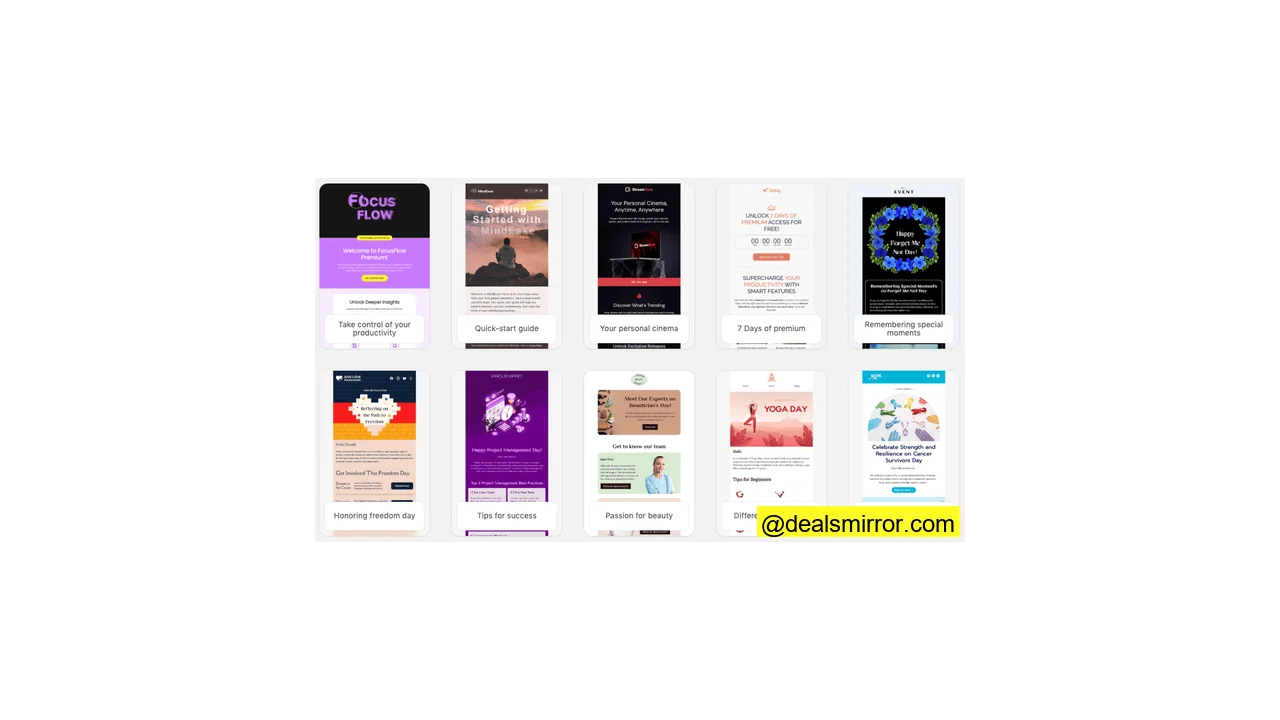
Browse through the options and pick the template that best suits your campaign’s aesthetic and objectives. Once selected, you’ll proceed to the powerful editor to personalize your design.
2. Customize the Template
Unleash your creativity within the Stripo HTML email builder. Experiment freely with layouts, colors, fonts, and content to make your template truly unique and reflective of your brand. The builder is designed with user-friendliness in mind, making it accessible even for beginners. For detailed guidance on building templates, explore the Stripo documentation.
3. Add Template to Gmail
Once your design is perfected, click the “Export” button located at the top of the Stripo interface. A pop-up will appear, presenting various export options. Choose “Application,” and then select “Gmail.”
Follow the prompts to sign in to your Gmail account. Your newly designed email template will then be automatically saved to your Gmail Drafts folder.
It’s important to note that when sending HTML email templates, Gmail may remove media queries. This typically means recipients will view the desktop version of your email, but without any horizontal scrolling issues, ensuring a clean presentation.
4. Add Contacts and Send the Email
Navigate to your Gmail inbox and open your Drafts folder. Your Stripo email should be the most recent draft. Click on it, and your polished template will open within the Gmail compose window, ready for final touches.
From this window, you can easily customize the subject line and fill in the “To” field with your recipients. Once everything looks perfect, click “Send” as you normally would.
For adding contacts, you have a few options: You can copy-paste recipients into the BCC field. With a Google Workspace account, you can add up to 2,000 recipients via BCC, while a personal Gmail account allows for up to 500 contacts. Using BCC ensures that your contacts’ email addresses remain private from one another. If your email outreach grows more serious, consider integrating one of the many robust email marketing platforms available, which offer advanced features for campaign management and deliverability.
2 Alternative Methods for Sending HTML Emails in Gmail
Use Layouts in Gmail (Google Workspace)
If you have a Google Workspace account, you can take advantage of Gmail’s built-in visual editor for creating HTML emails. Here’s how to do it:
Open Gmail, click the “Compose” button, and then look for the “Layout” icon. If it’s not immediately visible, click the three-dot menu to locate it. From there, you can choose one of the default layouts provided or start building a custom design from scratch.

Within the visual editor, you have the flexibility to insert, resize, and rearrange various elements such as text blocks, images, buttons, and dividers. Utilize the theme tools to fine-tune colors, fonts, and spacing, ensuring your email perfectly matches your brand’s aesthetic.

Once you’re satisfied with your layout, preview it across mobile, tablet, and desktop views to ensure responsiveness. Finally, click “Insert in Gmail” to drop your professionally designed HTML email directly into the compose window, ready to be sent.
Copy-Paste Rendered HTML into Gmail
Another straightforward method for incorporating HTML into Gmail involves a simple copy-paste technique. Start by exporting your meticulously crafted email design as an HTML file. Open this HTML file in your web browser (like Chrome, Firefox, or Edge) to confirm that it renders exactly as intended.
Once you’ve verified the design in your browser, select the entire page content (typically by pressing CTRL + A on Windows or CMD + A on Mac) and copy it. Then, paste this copied content directly into the Gmail compose window. That’s all there is to it! The email should appear in your recipient’s inbox precisely as it looked in your browser preview. Remember, the key is to copy the *rendered preview* of the HTML, not the raw HTML code itself.
For those needing to send mass emails, specialized Chrome extensions for Gmail, like GMass, can further streamline this process.
Essential Rules for Sending HTML Emails with Gmail
When you venture into sending HTML emails via Gmail, especially if you’re writing custom code rather than using robust editors like Stripo, there are specific guidelines to follow to ensure your emails render correctly:
- Images must be hosted online: Any images you include in your email must be properly saved and hosted on a web server. They should be referenced using a direct link (URL). Ideally, host images on your own server for better control. Alternatively, you can use services like Google Drive, but ensure the link is set to public access.
- External style sheets won’t work: Gmail does not support external CSS files. All styling must be included either as embedded CSS within the
<head>section of your HTML or, more commonly and reliably, as inline CSS directly within HTML tags. - Some HTML won’t be supported: Not all HTML tags and CSS properties that work on a standard web page are supported by Gmail. It’s crucial to check this list of supported HTML and CSS for Gmail to avoid unexpected rendering issues. Always verify how your email looks in a rendered preview before sending.
- Do not use web fonts: Gmail typically does not support web fonts. Stick to standard, web-safe fonts to ensure consistent display across all recipients’ inboxes. If a specific font style is critical (e.g., for branding in a logo), consider converting that text into an image and then linking to the hosted image.
- Using tables is a good idea: For structuring content and maintaining layout consistency across different email clients, using HTML tables is highly recommended, especially if you’re not using a specialized email builder. However, even with tables, testing is key. Utilize email HTML testing tools to confirm that your table-based layouts render correctly everywhere.
- Keep it simple: Given Gmail’s evolving HTML support and the varying ways different email clients render content, simplicity is your best friend. A minimalist approach to your HTML design helps ensure broader compatibility and reduces the chances of rendering errors.
- Avoid Google Docs: While some tutorials suggest using Google Docs to create HTML emails, this method is often unreliable. What you see in Google Docs may not accurately translate to the final email, leading to inconsistencies and unexpected formatting.
- Create a template: If you’re designing HTML emails manually rather than importing from Stripo, it’s wise to create and save your own HTML file template outside of Gmail. This allows you to quickly set up and reuse your preferred HTML email structure for future campaigns.
Remember, Gmail is constantly being updated by Google. Staying informed about the latest changes and features is important. Before sending to your full list, always consider sending a test email to yourself and using specific HTML email testing tools to ensure your HTML emails display perfectly.
Ultimately, simplifying the process with a service like Stripo can save significant time and stress. Stripo automatically handles the proper HTML structure and inline styles optimized for Gmail, guaranteeing a smooth and reliable email sending experience.
Wrap Up: Send HTML Gmail Emails
The journey to adding custom HTML to your email templates in Gmail doesn’t have to be daunting. While Gmail primarily offers a WYSIWYG editor, effective workarounds exist that allow you to create sophisticated HTML emails tailored to your unique needs.
If you choose to craft your HTML emails without the aid of specialized tools, be prepared for potential challenges. You might encounter difficulties ensuring your emails render perfectly across various screen sizes and email clients, and template functionality could change over time.
For a hassle-free experience, we highly recommend utilizing dedicated email design software like Stripo. Both free and paid versions of these editors provide an ideal solution for creating custom HTML emails with ease and reliability.